

February 27, 2025
How to Create Customized Forms in SYSPRO Document Templates

Ever wish your SYSPRO documents included a bit more personalized information? Maybe an “Expected Date” field on your Delivery Note could save you time or prevent miscommunication. Or maybe a “Customer Reference” field on your invoices could help clarify details for clients and avoid back-and-forth emails. Customized forms are a very simple way to help your team organize things. Well, you’re in luck because we have a way for you to easily add Custom Form Fields (CFFs) to your SYSPRO document templates.
The Impact of Personalization
Customizing SYSPRO document templates can have a big impact when used properly. Personalizing and customizing your workflows helps streamline communication, reduce errors, and align processes with how your unique business operates. Even seemingly small enhancements (like this one) can make your documents not just functional but also efficient.
Let’s break it down step by step so you can customize your SYSPRO documents, potentially saving time, improving communication, and more.
Step 1: Start with the Basics
Before getting into customized forms, you need to make sure you know the exact name of the Custom Form Field (CFF) you want to add. For this example, let’s work with the field called “Expected Date.”

Once you’ve got the name, open the Delivery Note format you’d like to customize:
1.) Select the Document Type and format.

2.) Click Define Format to begin.
Step 2: Link Your Custom Field
Since “Expected Date” is part of the Sales Order information:
1.) Highlight Document Custom Fields and click Change.

2.) Select an unused CFF variable from the list, highlight it, and click Change.

3.) Use the dropdown menu to select your desired CFF name (in this case, EXP001 for “Expected Date”).
4.) Click OK to confirm.

5.) With that, your variable is now linked to the CFF you want to display!

Step 3: Adjust the SRS Options
1.) Highlight SRS Options and click Change.

2.) Click Design to modify your document template.

Since “Expected Date” is header information, you’ll need to dig into the Field Explorer:
- Navigate to Database Fields → Documents → Document/HeaderData.
- Scroll down until you find CustomFieldOne, the variable linked to your CFF.

Step 4: Add the Field to Your Document
Here’s where the fun happens:
1.) Drag CustomFieldOne onto your Delivery Note template.
2.) Place it wherever it makes sense on the document and add a header label if you’d like (e.g., “Expected Date”).
3.) Tweak the design as needed, then save your changes.

4.) That’s it! Next time you generate the Delivery Note, your “Expected Date” field will appear.
Now, log into SYSPRO and try it yourself. If you run into any trouble, contact our SYSPRO team of experts for help with customized forms!

Is Your Business Falling Behind on AI, or Moving Too Fast?
AI in the workplace can sometimes manifest as a solution looking for a problem, which might tempt us to fast-forward through security and safety controls because the results look so promising. Before implementing any AI solution, organizations should establish a few foundational guardrails: clear acceptable use policies, human oversight of important decisions, and confidence that [...]
Read More
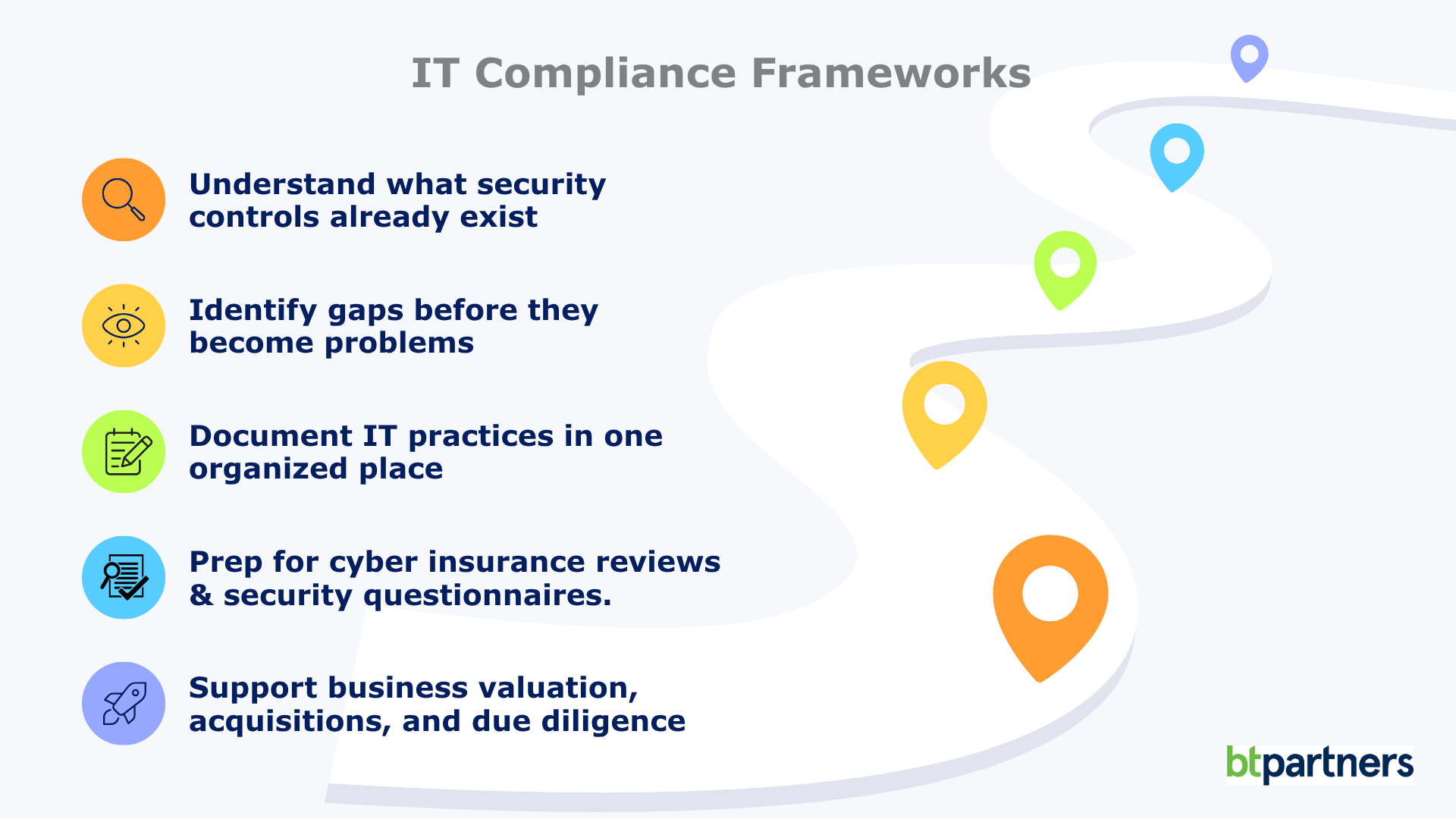
IT Compliance Frameworks Explained: What They Are and Whether Your Business Needs One
Firewalls, multi-factor authentication, passkeys, cyber insurance questionnaires, third-party security assessments. The rules around IT compliance change every year. Unlike plumbing or electrical systems, technology never really stands still. The security best practices that protected businesses a decade ago often aren’t enough today, and that’s exactly why IT doesn’t rely on fixed rulebooks the way many [...]
Read More
Windows 10 End of Life (What That Means for Your Business)
If you’re still running on Windows 10, your business is using unsupported software. Your computers won’t suddenly stop working, but they have stopped receiving the regular security updates and patches that help protect them from new threats. That’s where the risk begins. For many business leaders, this Windows 10 end of life announcement feels frustrating. [...]
Read More